Get started
Start your website with two answers
Tell Mirin your business name and what you do. You see your own first screen in every design, pick the one that feels like you, and Mirin builds the whole homepage in about ten minutes. It is free and no card is asked for.
On this page
Who sees Start
Start is the first thing you see when you sign in to Mirin with an account that has no website yet. There is nothing to install and nothing to set up first.
- Choose a way inOn mirin.com, choose Log in, or pick a plan on Pricing. The Free plan is one of them.
- Sign inUse your Google account, or get a link by email. There is no password.
- Start opensAn account with no website yet opens on Start.
New to Mirin? A new email address gets a free account made for it.
How each way of signing in works is covered in Sign in to Mirin.
You have no website yet
- Start asks for your business name and what you do
- You pick a design that already shows your business
- Mirin builds the homepage while you watch
You already have a website
- Put your website’s address in the form on the mirin.com homepage
- Mirin redesigns the website you have, free
- What happens next is in Website scorecard
You can also begin on the mirin.com homepage before you have an account. Say you have no site yet, describe your business, pick a design and leave your email. Mirin builds the homepage and emails it to you.
A plan you picked is remembered
If you chose Pro or Business on Pricing before you signed in, the sign in page and Start both say so: Pro is saved for when you go online. Nothing is charged today. See Plans and pricing.
Say what your business is
Start asks two things. They are all Mirin needs to show you a first screen, which is the top of your homepage as a visitor first sees it.
Let’s build your website.
Say what the business is. Mirin writes your first screen in every design while you watch. Free, and no card.
Pick a design
Your first screen is about to be written in each design.
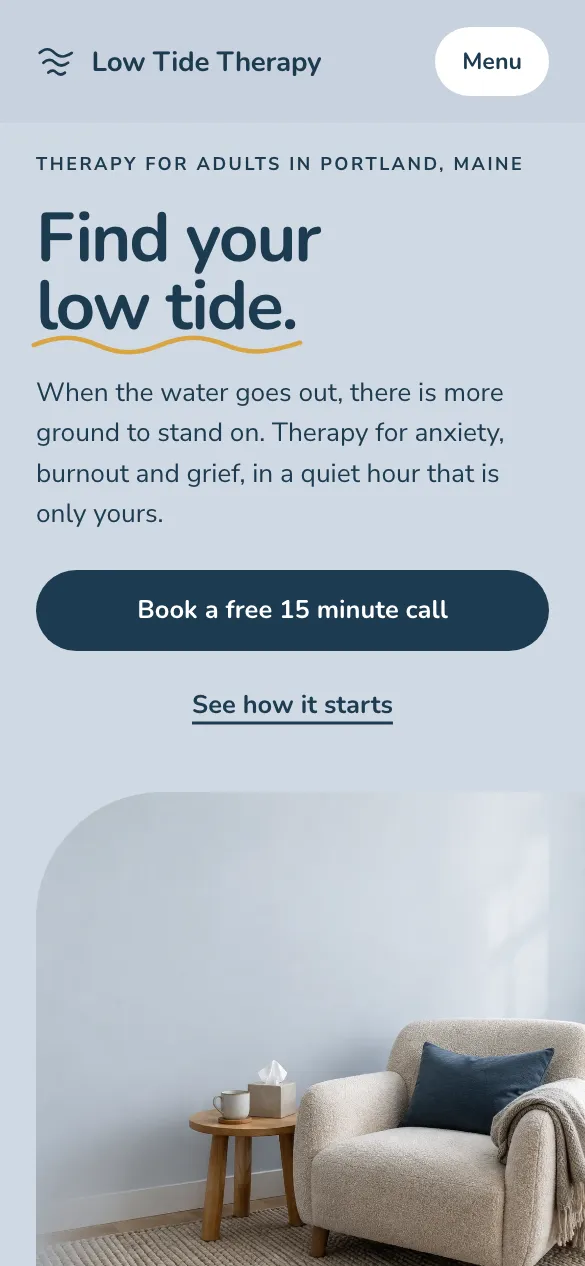
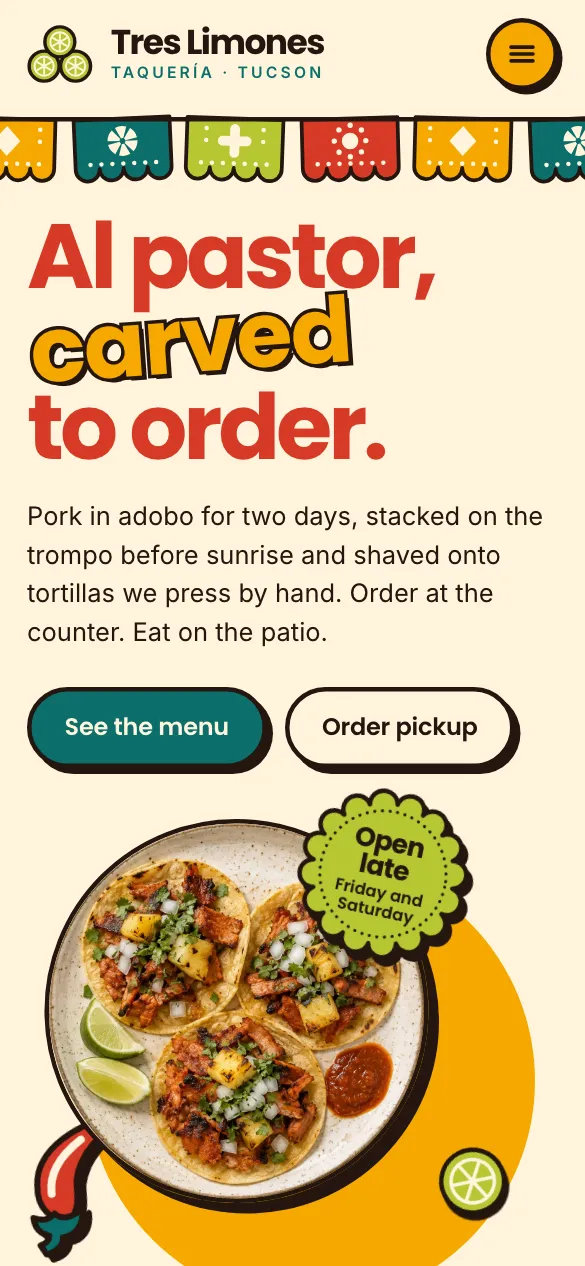
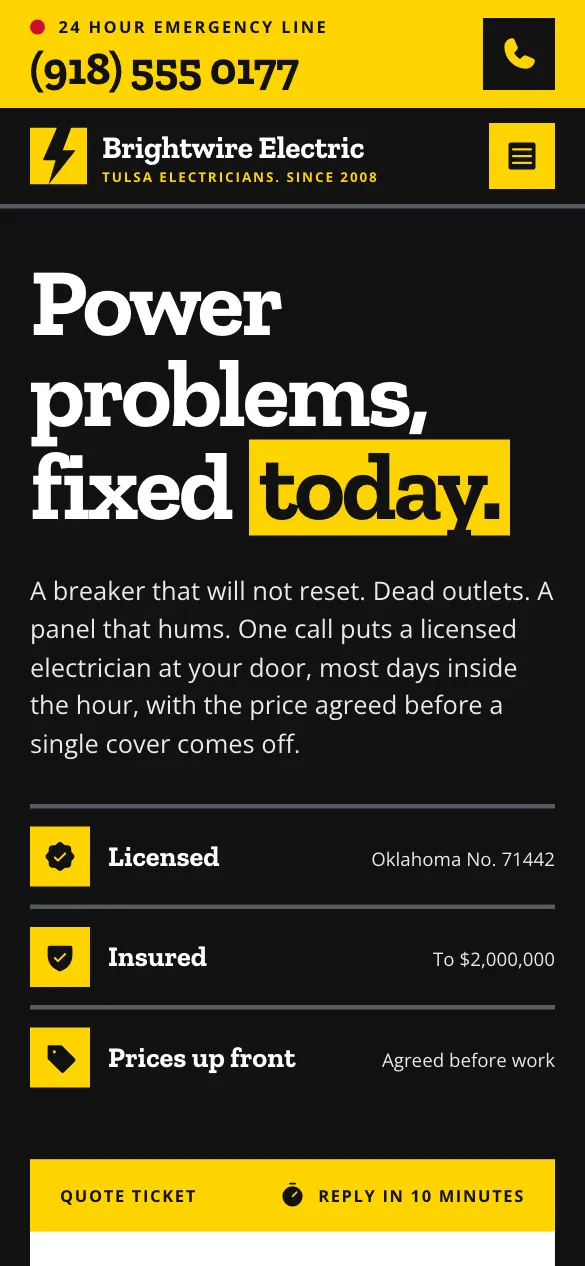


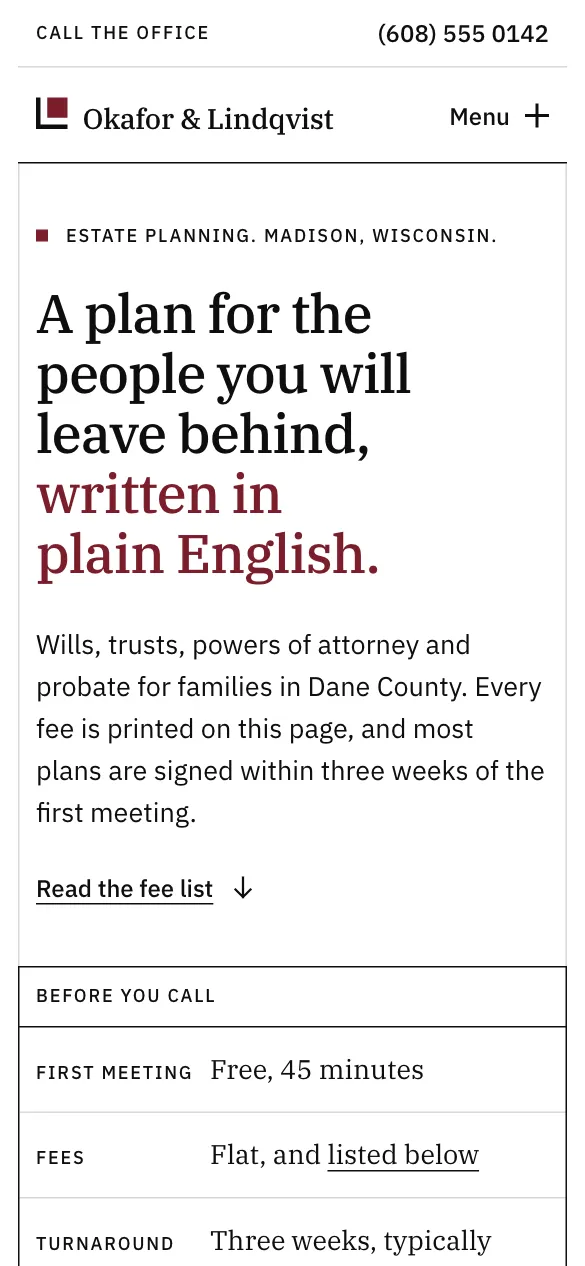

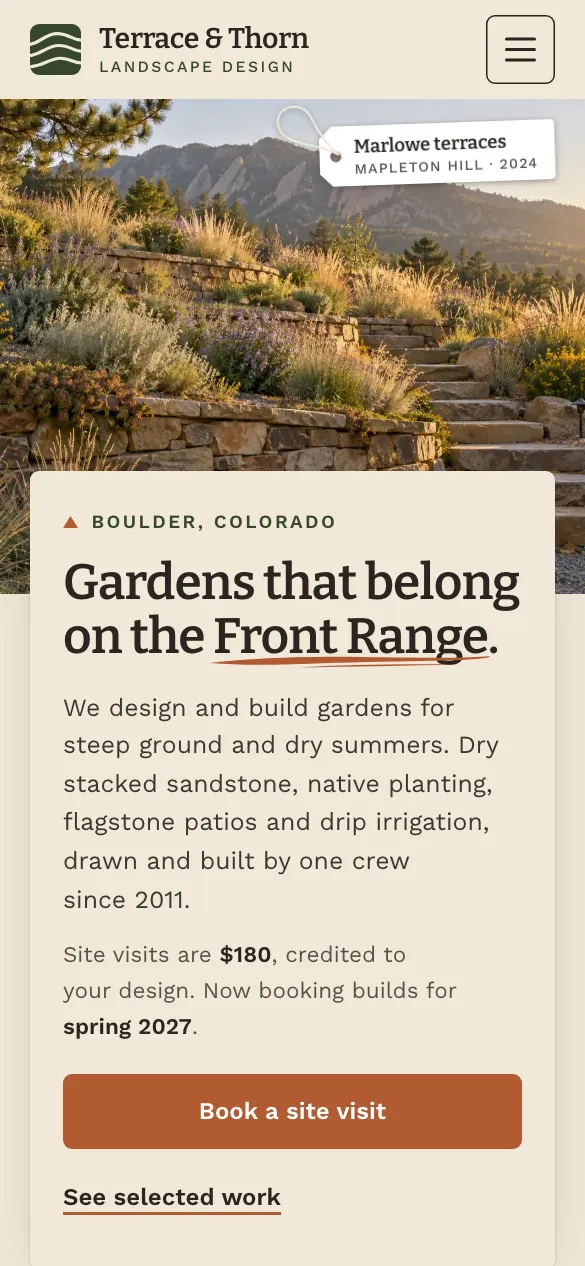
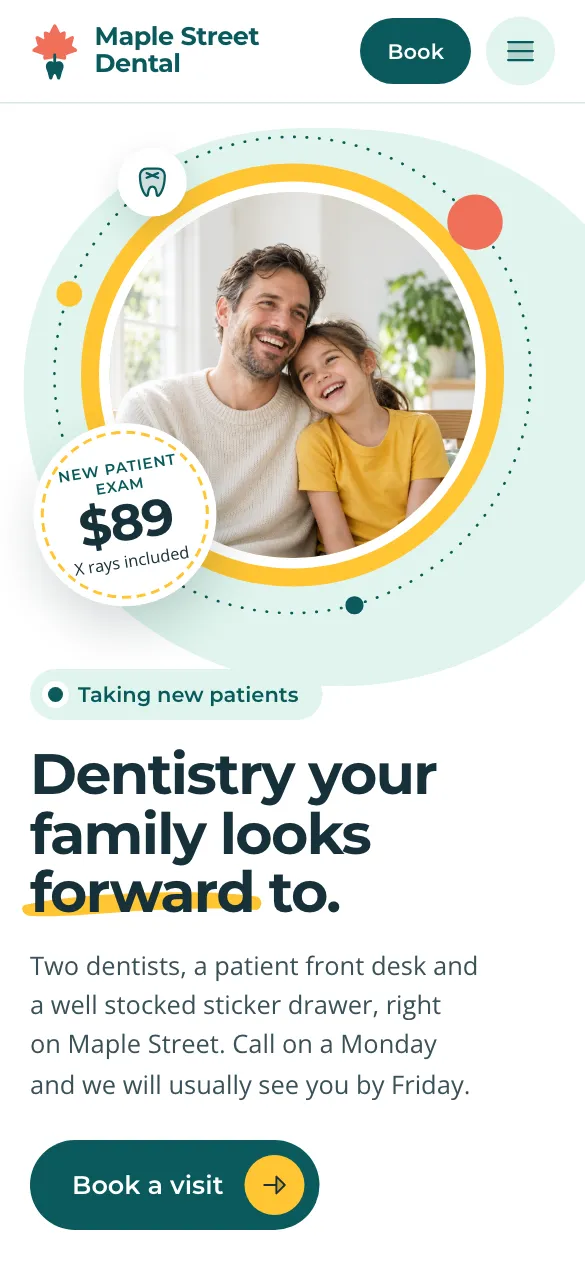
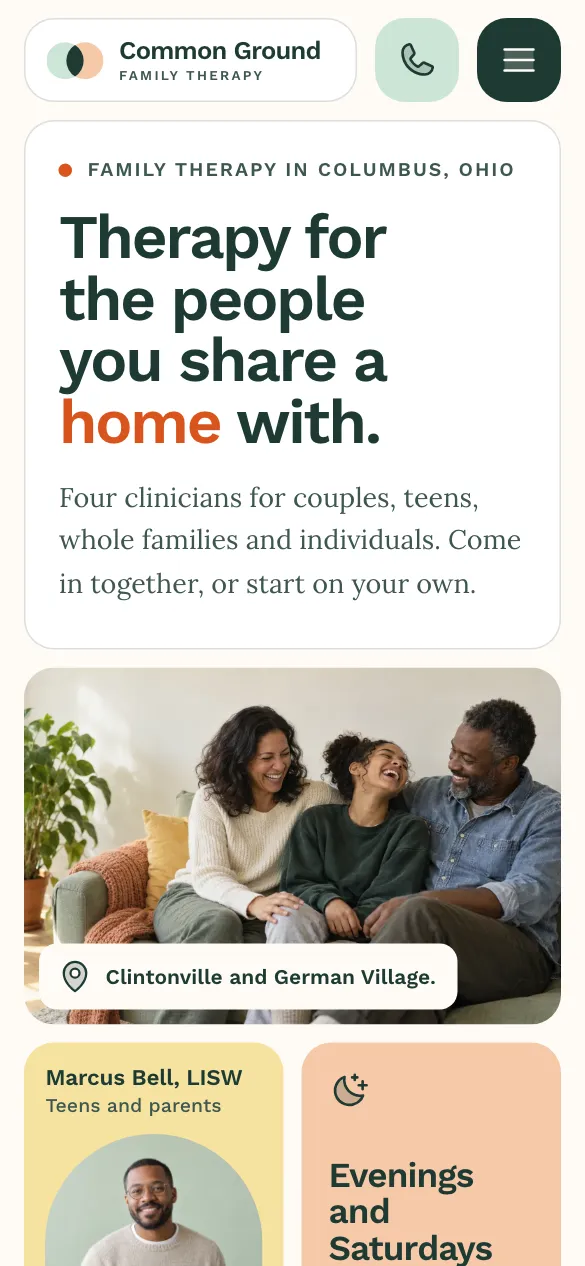
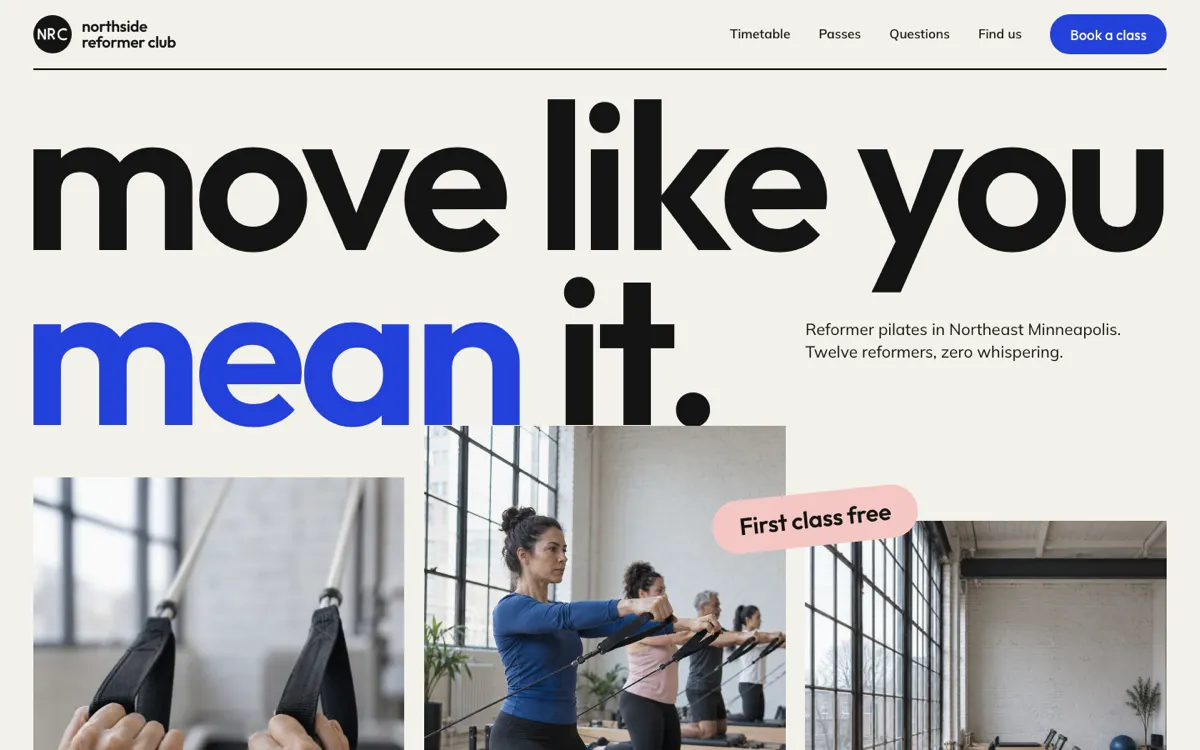
Salt & Stone Pilates · Bold and athleticFree, no card, about ten minutes. Free websites carry a small Made with Mirin credit.
- Business name
- As you want it shown on your website. It appears on every design while you type.
- What your business does
- One or two sentences. Say what you offer, who it is for and where you work. A fuller answer makes a fuller homepage.
What happens while you type
You do not press anything. The designs follow what you write, in this order.
- Your nameOn every design, at once.
- PhotographsOnes that suit your trade come next.
- Your wordsA headline and words written for your business, one design at a time.
Change either answer and the words are written again for what you said.
Pick the design that feels like you
Every design shows the same business, yours, so you are comparing looks and nothing else. Sweep through the row with the arrows, or by swiping on a phone. Each design is also a whole example website on mirin.com, described in Start from an example.
- Our pick. Mirin marks one design Our pick from what you wrote. It is a suggestion, and the row puts it first.
- Your choice. Select any design and it reads Selected. The bar at the bottom names it beside your business.
- On a computer. Below the row, the design you selected is shown at a computer’s size, with a line on its look and its photographs.
Look closer
Look closer opens a design over the whole screen, so you can judge it at the size your visitors will see. It is the button beside the design you selected, and the corner button on every design in the row.
- Desktop and Phone
- Switch between the two sizes. On a phone you always see the phone size.
- Before your words are written
- You see the design’s whole example page, from top to bottom, and it scrolls.
- Once your first screen is written
- You see your own first screen. Whole page switches to the example, and Your first screen switches back.
- The designs either side
- The arrows show the design before and the design after. Choose this design selects the one you are looking at.
Only your first screen is written before a build
The rest of the page is the design’s example, under the example’s own name. Mirin writes every section for your business when you choose Build my homepage.
Build your homepage
Build my homepage stays in reach at the bottom of Start. It builds the whole homepage from the first screen you chose. It is free and needs no card.
Mirin is writing Salt & Stone Pilates.
The first screen is the one you chose. The rest of your homepage is being written under it. You can close this page at any time. It will be here when you come back, and we will email you too.
- Write
- Make editable
- Check
- Save
Sometimes a little longer.
One status line says what is happening now and roughly how long is left. Beside it, the four steps fill in as each one is done.
- WriteWriting the rest of your homepage.
- Make editableMaking every part editable.
- CheckChecking it on a computer and on a phone.
- SavePutting it in your account.
Under the status line you see the first screen you chose. The whole homepage takes its place as soon as it exists, and you can scroll it while the last steps finish.
You can close the page
The build carries on without you. It is there when you come back, and Mirin emails you when your homepage is ready.
Open your homepage in the editor
When the build is done the screen says Your homepage is ready. Choose Open it in the editor. The homepage is already in your Mirin account, so there is no link to verify and nothing to move.
- Starter photographs
- Chosen for your trade, so the page looks finished from the first minute. Swap in your own from Media.
- Honest stand-ins
- A fact Mirin was not given, such as your phone, address or hours, appears as plain words like Your phone. Mirin does not invent it.
- Change it by hand
- Every part of the homepage can be changed. The editor is covered in Using the visual editor.
- Or ask Mirin
- Say what you want changed in plain words and Mirin makes the change. See AI page edits.
What to do first
- Replace the stand-ins. Give Mirin your phone number, address and hours, or type them in yourself.
- Swap the photographs. Use your own wherever you have them.
- Read every section once. Change anything that is not true of your business.
- Put it online. The ways to do that are in Put your website online.
If your homepage is not ready yet
Most builds end with a finished homepage. Two other screens can appear instead. Neither one means you did something wrong, and neither one loses your answers.
- Your homepage is getting one more look.
- Sometimes a finished homepage needs a person at Mirin to look before you work on it. The screen says so, and an email follows when it is ready, usually within a few hours.
- We could not finish your homepage.
- The screen says it is our fault, not yours. Try again starts the build again with the same answers. If the button is not there, Mirin has been told and emails you when it is ready.
Put your website online
Nobody else sees your homepage until you put it online. In the editor, choose Upgrade at the top right to see the plans. You can go online free today and move to a paid plan whenever you want one.
Go online free
- A Mirin address, like saltandstone.mymirin.com
- A small Made with Mirin credit on every page
- No subscription and no card
A paid plan
- Pro and Business, paid monthly, month to month
- Your own domain, and no credit on your pages
- Paid in the checkout inside Mirin
A plan you picked on Pricing opens first
If you chose Pro or Business before you signed in, Upgrade opens on that plan, and the other plans are one press back. Nothing has been charged for it. You pay at checkout when you go online.
Already signed in when you choose a plan on Pricing? Mirin opens that plan’s checkout for the website you have open.
- Going online free. What the Free plan includes and the check before a page goes online are in Put your website online free.
- Choosing a plan. What each plan includes is in Plans and pricing, and your bill and card are in Manage billing.
- Your own domain. Pointing your own address at the website is in Custom domains.
- Later changes. After the first time, edit and publish your changes with the blue Publish button. See Publishing.
Common questions
Short answers to what people ask before and after they start.
- Is Start free?
- Yes. Building your homepage costs nothing and no card is asked for. Putting it online at a Mirin address is free as well, on the Free plan.
- Who sees Start?
- Anyone who signs in to Mirin with an account that has no website yet. A new email address gets a free account made for it.
- How long does the homepage take to build?
- About ten minutes, sometimes a little longer. One status line shows what is happening and roughly how long is left.
- Can I close the page while my homepage is built?
- Yes. The build carries on without you. It is there when you come back, and Mirin emails you when your homepage is ready.
- What is Our pick?
- The design Mirin suggests from what you wrote about your business. It is a suggestion only. You can choose any design in the row.
- Why does Look closer show another business?
- Before a build, only your first screen is written. The rest of the page is the design’s example, under the example’s own name. Mirin writes every section for your business when you choose Build my homepage.
- Can I change the homepage after it is built?
- Yes. Every part of it can be changed in the editor, by hand or by asking Mirin in plain words.
- Why does my homepage say Your phone or Your hours?
- Those words stand in for facts Mirin was not given, so that nothing on your page is made up. Replace each one with the real detail before you put the website online.
- Can I build a second homepage with Start?
- No. Each account gets one free built homepage. Every part of it can be changed in the editor afterwards.
- I picked a plan on Pricing before I signed in. Was I charged?
- No. The plan is saved for when you go online. Nothing is charged until you choose to go online on that plan and pay at checkout.
- I already have a website. Is Start for me?
- Start is for an account with no website. If you have one, put its address in the form on the mirin.com homepage and Mirin redesigns it free.
- The words on the designs stopped changing. Why?
- After many rewrites in a short time, Start says That is a lot of rewrites. Give it a few minutes and try again. The designs stay on the screen while you wait.
- Start says We could not load the designs. What now?
- Nothing is lost. Choose Try again in a moment.