Edit your website
Find the right section and make it yours
Browse every design your website can use, see what each one lets you change, and add the right section to a page. Save a whole page as a starter for the next one.
On this page
Find the right section
Open Content, then Design Library. It holds every design your website can use, and it opens on Components.
Design Library
Timetable
This week at the studio
- Monday7:00 AMReformer foundationsAll levels
- Wednesday6:00 PMReformer flowIntermediate
- Saturday9:00 AMPrenatal reformerGentle
- Components
- Every design your website can use, whether it came with your theme pack or was made for you.
- Shared
- Sections you have already shared, ready to drop onto a page.
- Templates
- Saved page starters, so the next page can begin from a whole design.
- Packs
- Theme packs, where they are installed and kept up to date.
Search looks at names, descriptions and the names of editable fields, so searching for booking link finds the class schedule.
- Find. Search, or narrow the list with All categories. Designs with similar names stay separate, so compare their previews and versions.
- Preview. Switch between Fit to workspace, Tablet and Mobile to see how the design reflows. Reload preview draws it again.
- Add. Choose Use on a page and pick the page. It opens in the page builder with the design ready, and nothing is added until you choose Add section there.
Each view has its own address. Refreshing keeps the view you were on, Back and Forward move between views, and Templates also remembers the starter you selected, so a saved link opens the same place.
In the page builder, Add section opens the same library at the spot you picked, as the visual editor guide describes. To start something new instead, open More library actions, choose Create in page builder and pick a page. Browsing and previewing never change your pages.
Understand the preview
Open Inspect design to see what a design is and what a page will be able to change about it.
Design Library
- Preview
- A read only picture of the design with its defaults, or of the saved content in a shared section.
- Fields
- What a page can change after you add the section, such as a heading, a picture or a connected list.
- Details
- Where the design comes from, its component version, whether edits stay on one page, and its design reference.
- Used on
- Every saved page that uses the design, each counted once, marked as a published snapshot, the current draft or another named draft.
A section that shows connected content, like Workshops, can look empty here. The preview says so and points you to Fields rather than inventing entries. If a preview cannot load, Reload preview tries again, and your pages stay exactly as they are.
Used on counts saved content only, so unsaved edits and version history are left out. If the lookup fails, it offers Try again rather than reporting zero pages.
Start a new page from a saved starter
Templates holds saved page starters. Save a service page once, then reuse its whole design for the next service.
Design Library
Private and small group reformer
Strength that stays with you.
Unhurried classes in a bright studio, with an instructor who knows your name by the second visit.
Book a class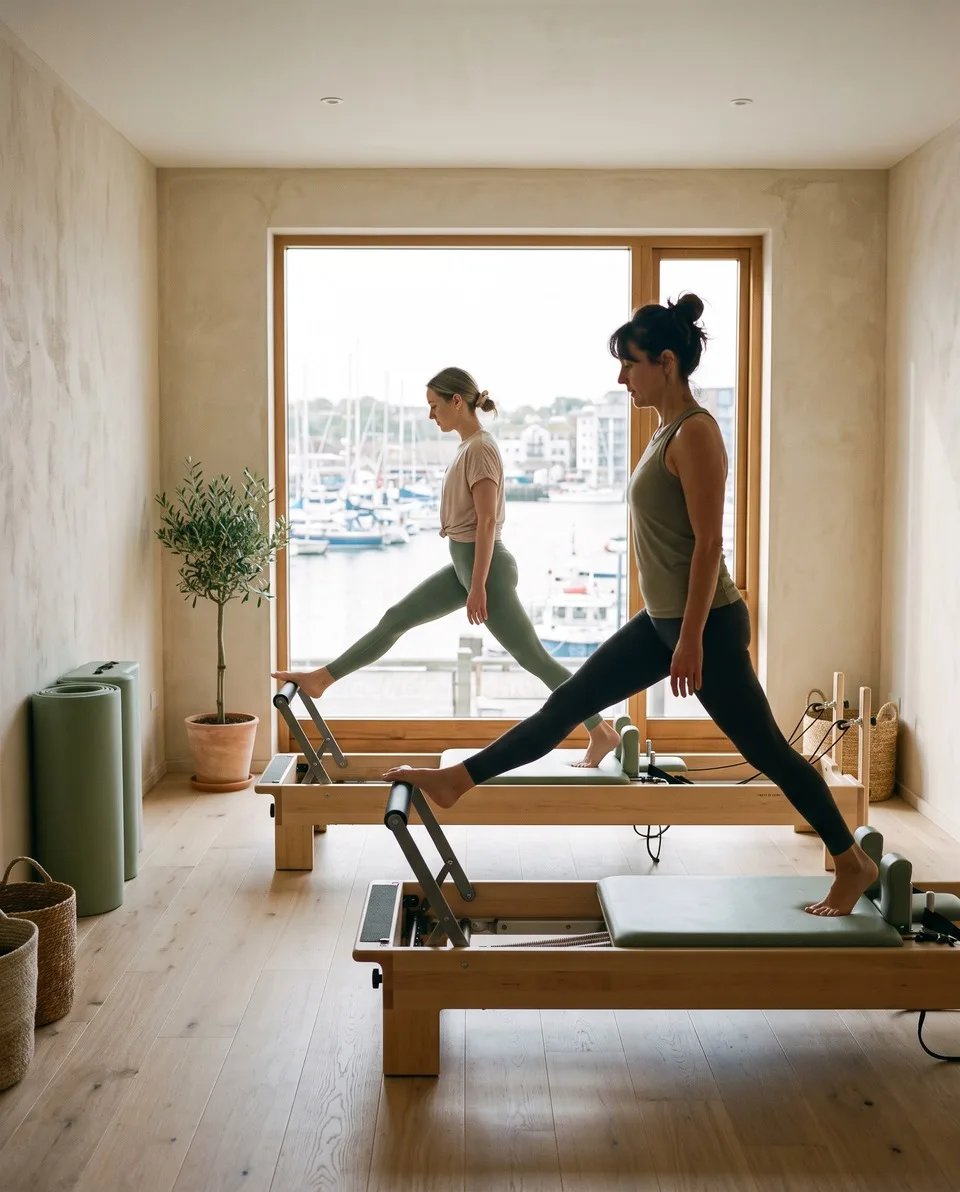
Timetable
This week at the studio
- Monday7:00 AMReformer foundationsAll levels
- Wednesday6:00 PMReformer flowIntermediate
- Saturday9:00 AMPrenatal reformerGentle
The studio
Meet the team
 Juniper HaleReformer and prenatal instructor
 Rosa DelgadoMat and mobility instructor
 Theo MarshIntro sessions
Visit
Come and say hello
Monday to Friday, 6:30 AM to 8:00 PM
Saturday, 8:00 AM to 1:00 PM
Connected content uses example defaults in this preview. Choose its source and a new preview record when creating the page.
Includes linked shared sections. Shared edits stay synchronized across pages.
- Save a starter. Open a page in the builder, choose Page actions, then Save as template. The name starts as the page title, and the description is optional. The page itself is not saved or published by this.
- Preview it. Open Templates in Design Library, or choose Add page in the page switcher. Browsing never creates a page.
- Use it. Choose Use template, enter the page name and its address, and choose Create page. The new draft opens in the builder.
Pages that follow a content list, such as a profile for each team member, stay in Pages instead.
Each new page gets its own identity. Its title, address, homepage setting, search details and preview record are chosen fresh, while connected content stays attached to your site’s lists.
When a starter includes shared sections, choose Keep linked to follow the current shared content, or Make independent copies to give the new page its own.
When a design is missing
If a starter uses a design your site no longer has, Use template is unavailable and the preview names the missing designs. Install their pack, or edit the starter to replace them.
Improve a starter for future pages
Open Template actions, then Edit design. Sections sit on the left and the whole page previews on the right.
Editing template
Private and small group reformer
Strength that stays with you.
Unhurried classes in a bright studio, with an instructor who knows your name by the second visit.
Book a classTimetable
This week at the studio
- Monday7:00 AMReformer foundationsAll levels
- Wednesday6:00 PMReformer flowIntermediate
- Saturday9:00 AMPrenatal reformerGentle
Visit
Come and say hello
Monday to Friday, 6:30 AM to 8:00 PM
Saturday, 8:00 AM to 1:00 PM
On a narrow screen, switch between Sections and Preview.
- Save template
- Future pages use the updated design. Pages already made from the starter keep their own layouts.
- Make independent copy
- Detaches a shared section so you can edit its content inside this starter.
- Undo, Redo and Discard
- Step through your changes, or go back to the saved starter. Discarding never changes an existing page.
- Template details, Duplicate and Delete
- In Template actions. Rename or describe the starter, copy it, or remove it. Pages made from a deleted starter stay as they are.
Templates have no Publish button and no public address. Leaving with unsaved edits asks first, and this browser tab keeps a copy so a refresh does not lose your work. If the saved starter changed somewhere else meanwhile, choose Restore my draft or Use saved design. Very large drafts cannot be kept this way, so save before you leave.
Starters that come with Mirin
They are read only. Duplicate one to make a version of your own.
Keep pack maintenance separate
Packs is where theme packs are installed and kept up to date. Each pack shows whether it is installed, how many of its designs your library has, and its latest release.
Design Library
Salt & Stone
Private and small group reformer
Strength that stays with you.
Unhurried classes in a bright studio, with an instructor who knows your name by the second visit.
Book a classChoose Manage pack to look after one.
- Preview release
- Current site designs shows what your site uses now. Choose a saved release to see its designs as they were. Previewing never changes the installation, and an older release cannot be added to a page.
- Pack details
- The artwork, description and release notes, with separate counts for your current designs, the installation and the release. The counts can differ once custom designs are added.
- Page updates
- Lists the pages a release would change and the fields it adds or removes. Choose the pages and the update options, then update them. Republish updated pages starts switched off.
- Uninstall pack
- In More pack actions, with its own confirmation. Customized components stay in your library, and pages that use removed components may need updates.
- Review installation
- For a pack that is not installed. It installs the latest release, whichever release you were previewing, and publishes nothing.
A component’s version and the pack’s release number are counted separately, so they can differ. Developers can read Theme packs to build and release a pack.